¶ Troubleshooting black screen on boot
There are various types of black screen on boot (with only mouse visible, with blinking underscore, etc), which can occur for various reasons. This wiki page addresses some of the common causes and basic troubleshooting steps to try.
If you are using Nvidia GPU, be sure to check suggested steps on System will not boot after Nvidia driver update page.
For more general approach, first thing to do is entering TTY terminal:
- Try using
Ctrl + Alt + F3on the black screen during boot to enter the TTY terminal. Skip to Step 2 if it succeeds.
If key combination fails, reboot into GRUB menu and try to boot an older kernel (button down on kernel list, enter). If previous kernel works fine, check step 5.
If this also doesn't work:
-- on GRUB menu, press 'e' when the list of kernels show, look for the line with:
`quiet splash` , remove both and add the number 3 at the end, then press

`Ctrl + X`
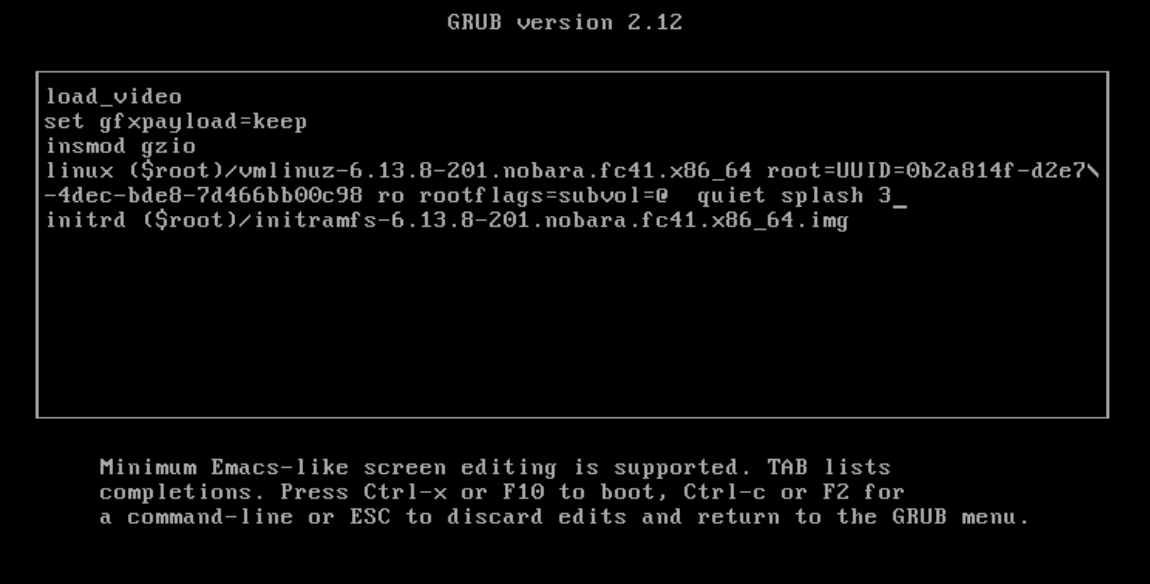
Notice that when you press 'e' on grub menu, usually latest kernel entry is highlighted, which is then booted. If it fails due to corrupted kernel install, try selecting 2nd kernel entry before pressing 'e'.
- When in TTY terminal, login with your username (lowercase) and password (it will not show * when typing).
If you somehow forgot your username, use root to enter as superuser with same password (unless you made separate password for root during Nobara installation).
- Make sure you have internet. Should be OK on wired connection. If you only have WiFi, it will not connect automatically from TTY, you need to use
nmclitool.
To check the list of saved connections:
nmcli con show
(If nothing found in saved, try nmcli device wifi list)
To enable WiFi connection of selected SSID (name of the link):
nmcli con up id "Your-SSID-Name" --ask
Verify that you have internet:
ping -c 4 google.com
- First thing to try is fully updating the system with:
nobara-sync
Be sure to read updater logs. It's difficult to scroll up on TTY, so to read full logs, use less ~/.local/share/nobara-updater/nobara-sync.log (navigate with arrow keys, PgDn/PgUp, q to close) or create link to share the logs and view them online: cat ~/.local/share/nobara-updater/nobara-sync.log | npaste
If update fails, refer to some common troubleshootiung steps explained here:
https://wiki.nobaraproject.org/general-usage/troubleshooting/updating-troubleshooting
- If previously you were able to boot normally from the previous kernel entry in GRUB menu, it's possible latest kernel installation was not successful or corrupted. If latest kernel boots into "emergency mode", this solution may also be relevant. Reinstall latest kernel together with regenerating initramfs:
sudo dnf reinstall 'kernel*'
sudo dracut -f --regenerate-all
reboot
¶ Attempting to debug login manager
You can check the status of the respective login manager and see if it shows any errors.
¶ On KDE Plasma:
systemctl status plasmalogin
When working correctly, next to "Active" is should show green "active (running)"
If it's not running, try to enable and start it with
sudo systemctl enable --now plasmalogin
If this does not make Plasma Login Manager interface to appear, you can try starting just the graphical shell:
startplasma-wayland
From shell it's possible to backup data easier or open terminal with Ctrl + Alt + T and look for errors like plasmashell coredumps on journalctl -b.
¶ On GNOME:
systemctl status gdm
When working correctly, next to "Active" is should show green "active (running)"
If it's not running, try to enable and start it with
sudo systemctl enable --now gdm
If this does not make GDM interface to appear, you can try starting just the graphical shell:
exec dbus-run-session -- gnome-shell --display-server --wayland
If any of these steps produce an error, note it and consult our Discord for further help.